Excel · Decision guide
How to compare two Excel files
If you have Spreadsheet Compare and need to check formulas or formatting, use it. If you only care about values, or the rows may have moved, save each sheet as CSV and compare by an ID column. In our test file, a re-sort produced 24 differences when matching by position and only 4 real ones when matching by ID.
Which method fits
| Your situation | Use | Why |
|---|---|---|
| Need to see formula, formatting or VBA changes | Spreadsheet Compare | Microsoft documents it for values, formulas and formatting and for VBA code. CSV holds none of these except values |
| Several sheets at once | Spreadsheet Compare | It pairs sheets by position, from the leftmost. A CSV export saves only the active sheet |
| Excel for Mac, Excel on the web, or a non-enterprise plan | CSV and a key column | Microsoft lists Spreadsheet Compare for Office Professional Plus 2013–2019 and Microsoft 365 Apps for enterprise, on Excel for Windows |
| Rows may be sorted, inserted or deleted, and each row has an ID | CSV and a key column | Rows are matched by ID, so order does not matter |
| No ID column and rows stay in the same order | Either | Position is a fair way to match when nothing moved |
We did not run Spreadsheet Compare or Excel for this page: no Excel was available on the test machine. Microsoft describes the tool as comparing “line by line, and cell by cell” and describes no option for matching rows by a key; the position result below is our own script, not that tool.
The test: the same orders, re-sorted
orders-march.csv and orders-april.csv hold eight orders each. April is sorted by customer instead of order number. We made the following changes:
| Order | Change | Kind |
|---|---|---|
| R-1001 | Removed in April | Real |
| R-1009 | New in April | Real |
| R-1005 | status: open → paid | Real |
| R-1007 | amount: 310.00 → 340.00 | Real |
| R-1002 | amount: 86.50 → 86.5 | Number format only |
| R-1004 | amount: 92.00 → 92 | Number format only |
We then counted the differences three ways. Position means cell 2 of row 3 is compared with cell 2 of row 3, which is what any check that ignores IDs has to do.
| Method | Differences reported | Real ones among them |
|---|---|---|
By position (32 cells) | 24 | Hidden in the noise |
By order_id, strict | 6 | 4, plus the 2 number-format changes |
By order_id, number format rule on | 4 | 4 of 4 |
Matching by ID removed 18 false differences. The number format rule removed the other 2, and still shows them as “counted as same” so you can check them.
Step by step
- In each workbook, go to the sheet you want and use Save As with a CSV type. Microsoft warns that only the active sheet is saved and that text formats remove all formatting, so save a copy.
- Open the Compare workspace and choose the older file as A and the newer as B. CSVLane suggests a column that is filled and unique in both. Here it picks
order_id. - Read the result. Changed cells appear as old → new, with rows only in A or only in B marked.
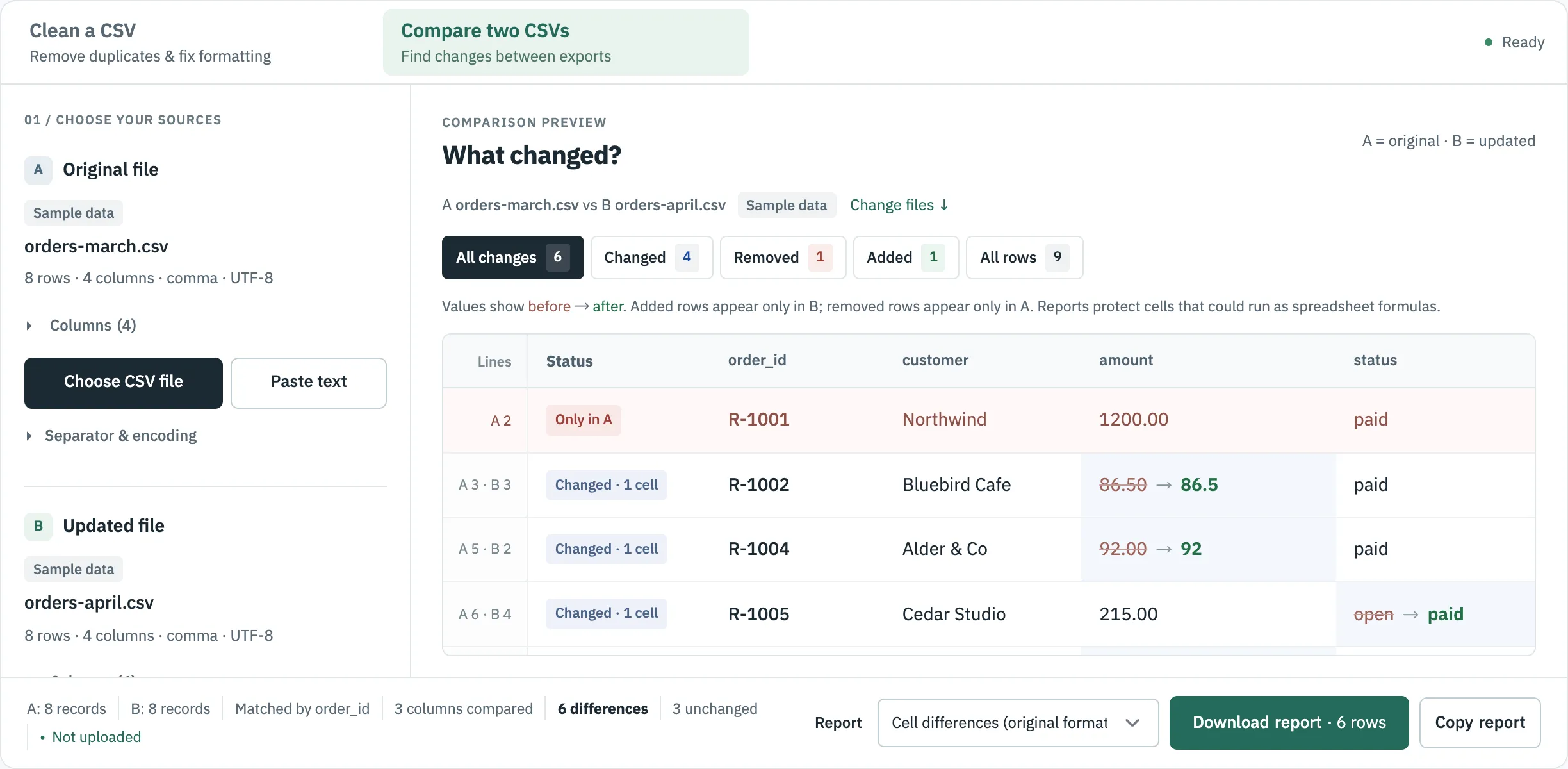
- If one file writes
92and the other92.00, open Comparison rules and turn on Number format.
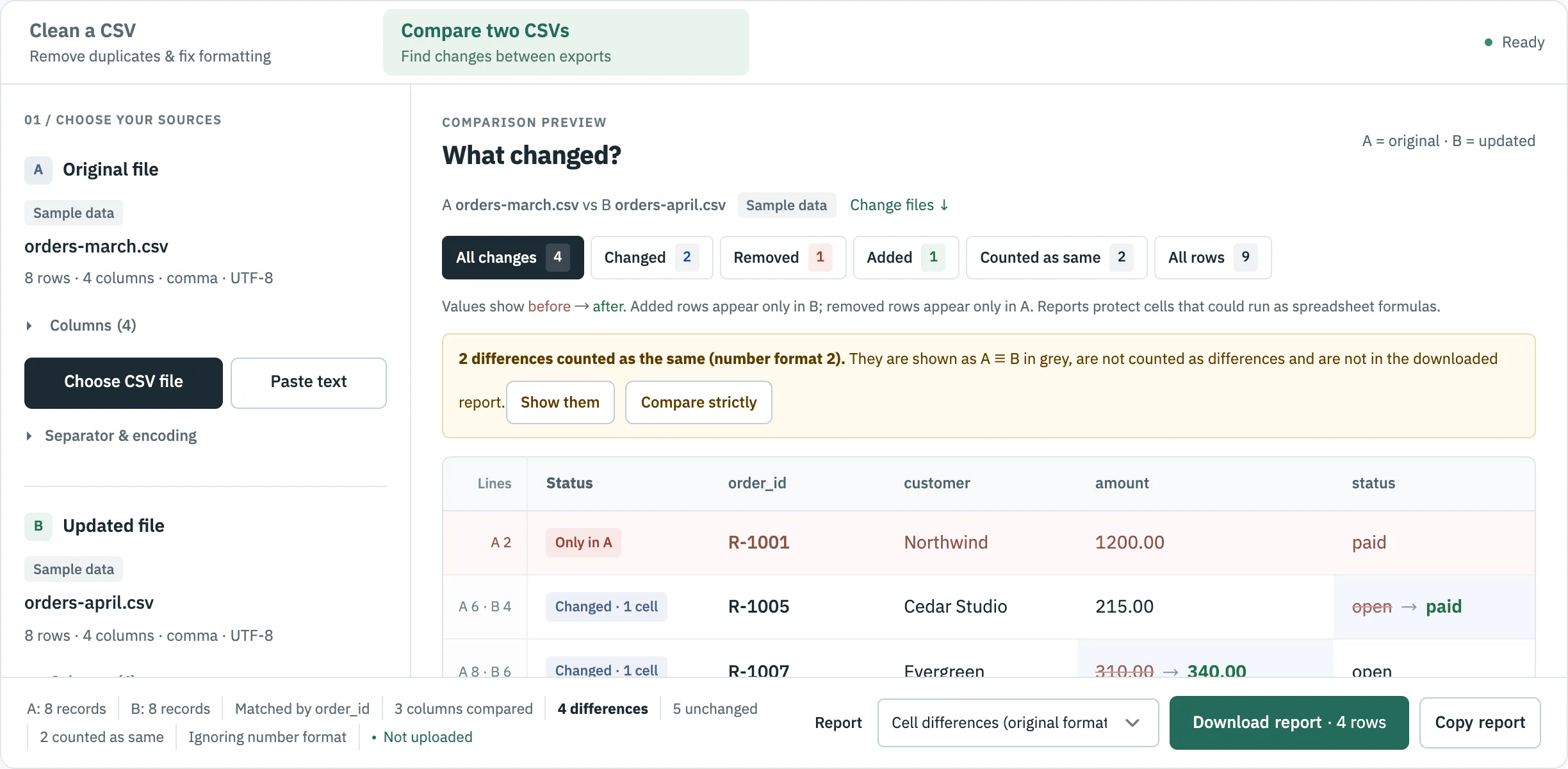
Use that rule with care: it also treats 007 and 7 as equal, which hides exactly the damage described in how Excel drops leading zeros.
When there is no single ID
CSVLane can match on up to three columns, such as customer and region. If a key is duplicated or empty, it stops and names the lines, and it can give you a list of those lines or compare only the first row of each key. This is by design: with two rows sharing one ID, there is no reliable way to say which row changed. The compare guide has a smaller example with expected results.
Where to go next
Sources
- Microsoft Support: Compare two versions of a workbook by using Spreadsheet Compare, read 30 October 2026.
- Microsoft Support: Overview of Spreadsheet Compare, read 30 October 2026.
- Microsoft Support: Basic tasks in Spreadsheet Compare, read 30 October 2026.
- Microsoft Support: Save a workbook to text format (.txt or .csv), read 30 October 2026.