Excel · Common errors
Keep leading zeros in Excel when you open a CSV
Do not double-click the CSV. Import it with Data > From Text/CSV, set the column type to Text, then load it. Microsoft says formatting cannot restore zeros that are already gone, so if the file was already saved from Excel, go back to the original export.
A CSV is plain text, so 02134 is five characters in the file. The zero is lost when a spreadsheet reads that text as a number, and it stays lost if you then save. Here are the four changes to look for, then how to prevent them, then how to find them in a file that has already been through a spreadsheet.
Four things that change, per Microsoft
| In the CSV | After conversion | What happened | Source |
|---|---|---|---|
02134 | 2134 | Leading zero removed | Microsoft |
007 | 7 | Leading zeros removed | Microsoft |
4000123412341234 | 4000123412341230, shown as scientific notation such as 4.00012E+15 | 15 significant digits kept; later digits become zero | Microsoft |
12/2 | 2-Dec | Read as a date | Microsoft |
These are Microsoft’s documented conversions, not our Excel test: no Excel was available on the test machine. The “after” file below is hand-built from these rules, so treat it as a test file for finding damage, not as a recording of Excel. The display form of the long number is an illustration of Microsoft’s rule.
How to keep them
- Import, do not open. In Excel, use Data > From Text/CSV, choose Edit or Transform Data in the preview, select the columns and set Data Type to Text (Microsoft’s steps). Do this for ZIP codes, part numbers, IDs and anything else that is a code, not a quantity.
- Or use the wizard. Microsoft notes that changing the extension from .csv to .txt makes Excel start the Text Import Wizard, where you can mark columns as Text. The FCC’s instructions for its filing data use the same wizard for the same reason.
- On current versions, change the default. In Excel for Microsoft 365 and Excel 2024, Automatic Data Conversions has options for leading zeros, the 15-digit cut and date conversion.
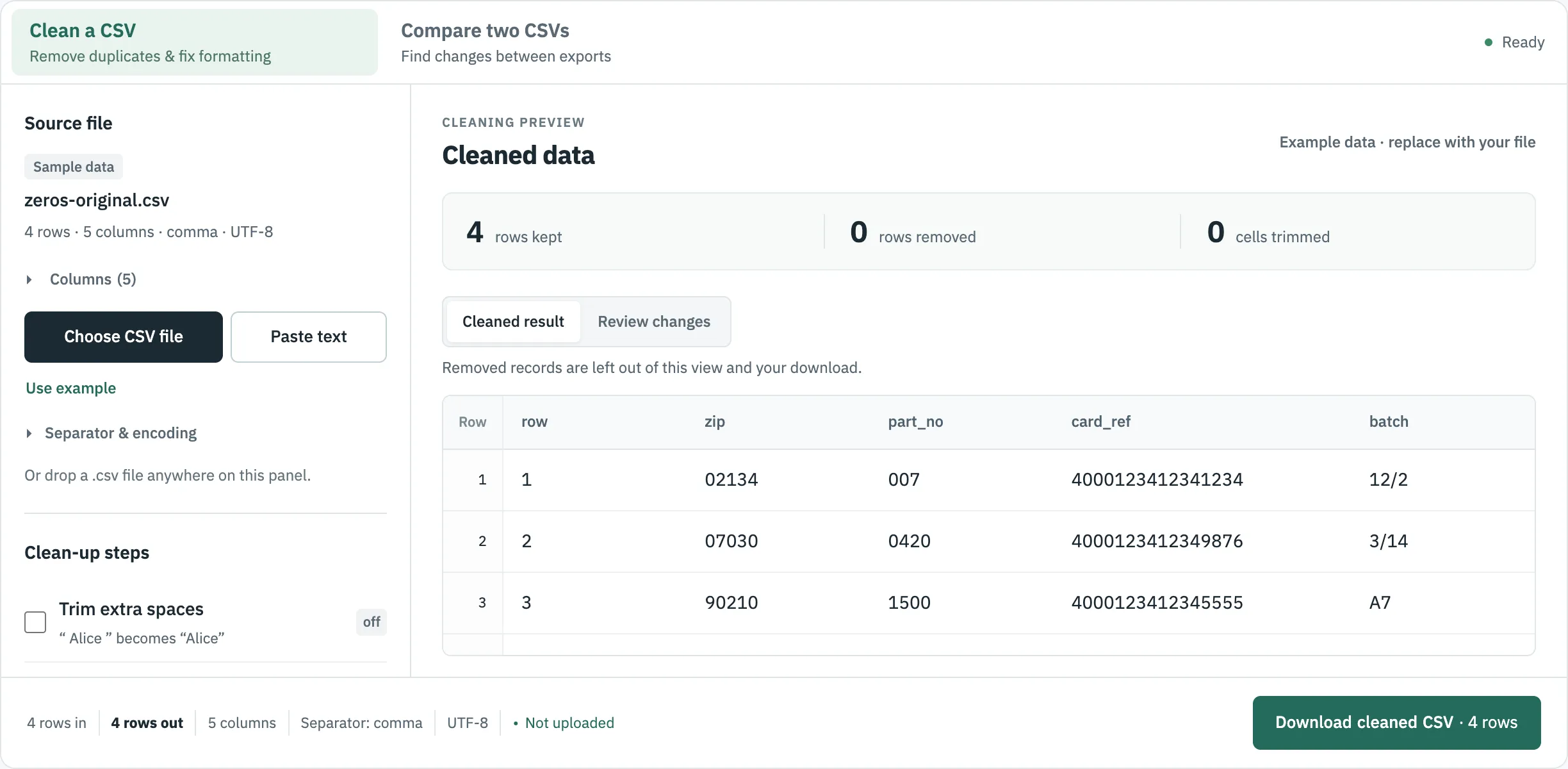
- Or do not use a spreadsheet for this step. If you only need to remove duplicates or change the separator, tools that treat cells as text leave the values alone. In CSVLane,
02134stays02134after cleaning.
Custom number formats such as 00000 only change how codes are displayed, and only work for codes under 16 digits. They are fine for viewing, but do not treat them as a fix for a column whose zeros are already gone.
Find every cell that already changed
Someone sent you a file that “looks fine”. If you still have the original export, compare the two by a row ID and you get an exact list, which beats looking down a column. To try it, use zeros-original.csv and zeros-after-spreadsheet.csv.
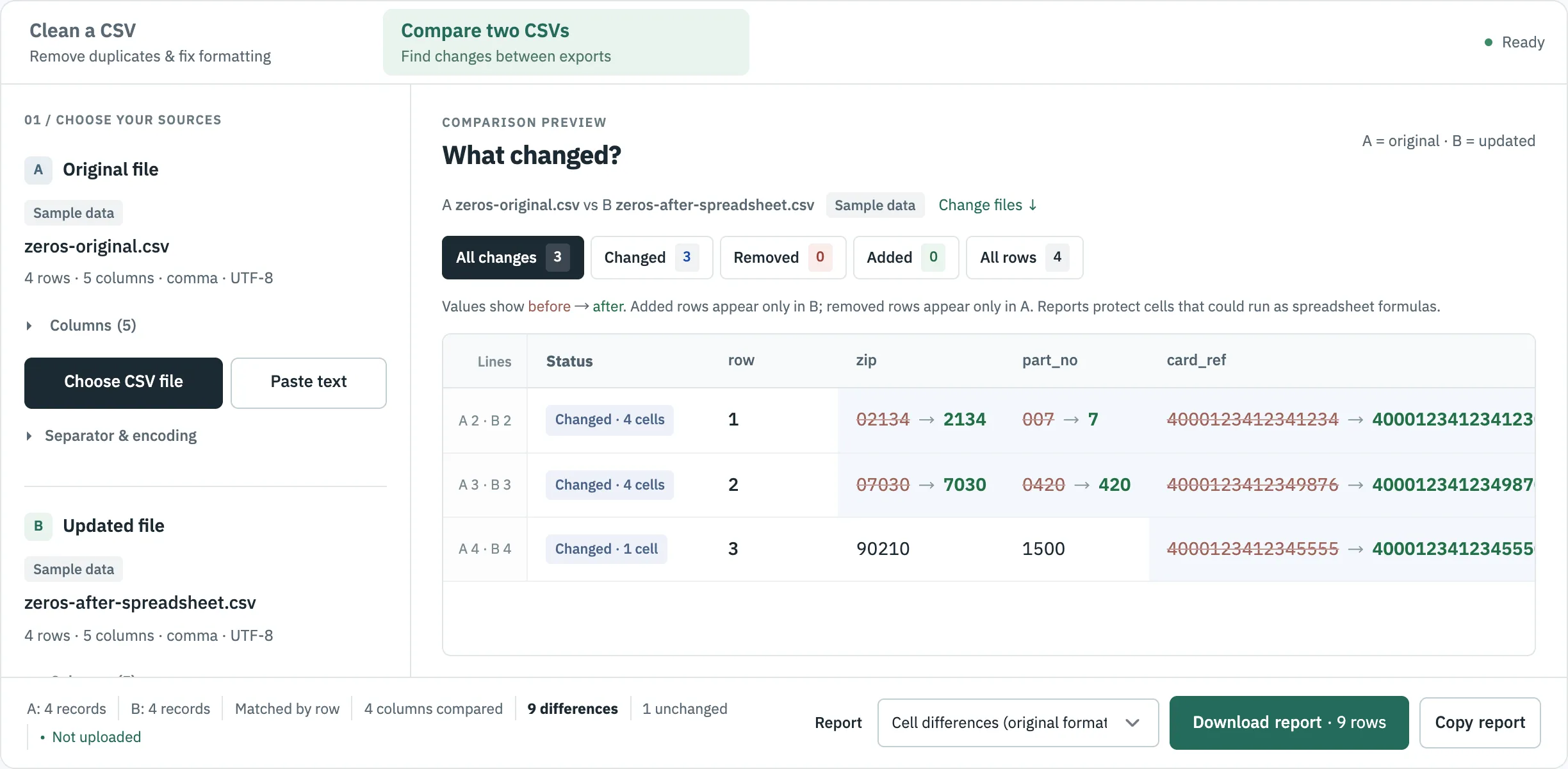
| Column | Changed cells | Example |
|---|---|---|
| zip | 2 | 02134 → 2134 |
| part_no | 2 | 007 → 7 |
| card_ref | 3 | 4000123412341234 → 4000123412341230 |
| batch | 2 | 12/2 → 2-Dec |
The trap: the number format rule hides this
CSVLane’s optional Number format rule counts 007 and 7 as the same, which is what you want when comparing prices. Turn it on here and 4 of the 9 differences disappear from the list:
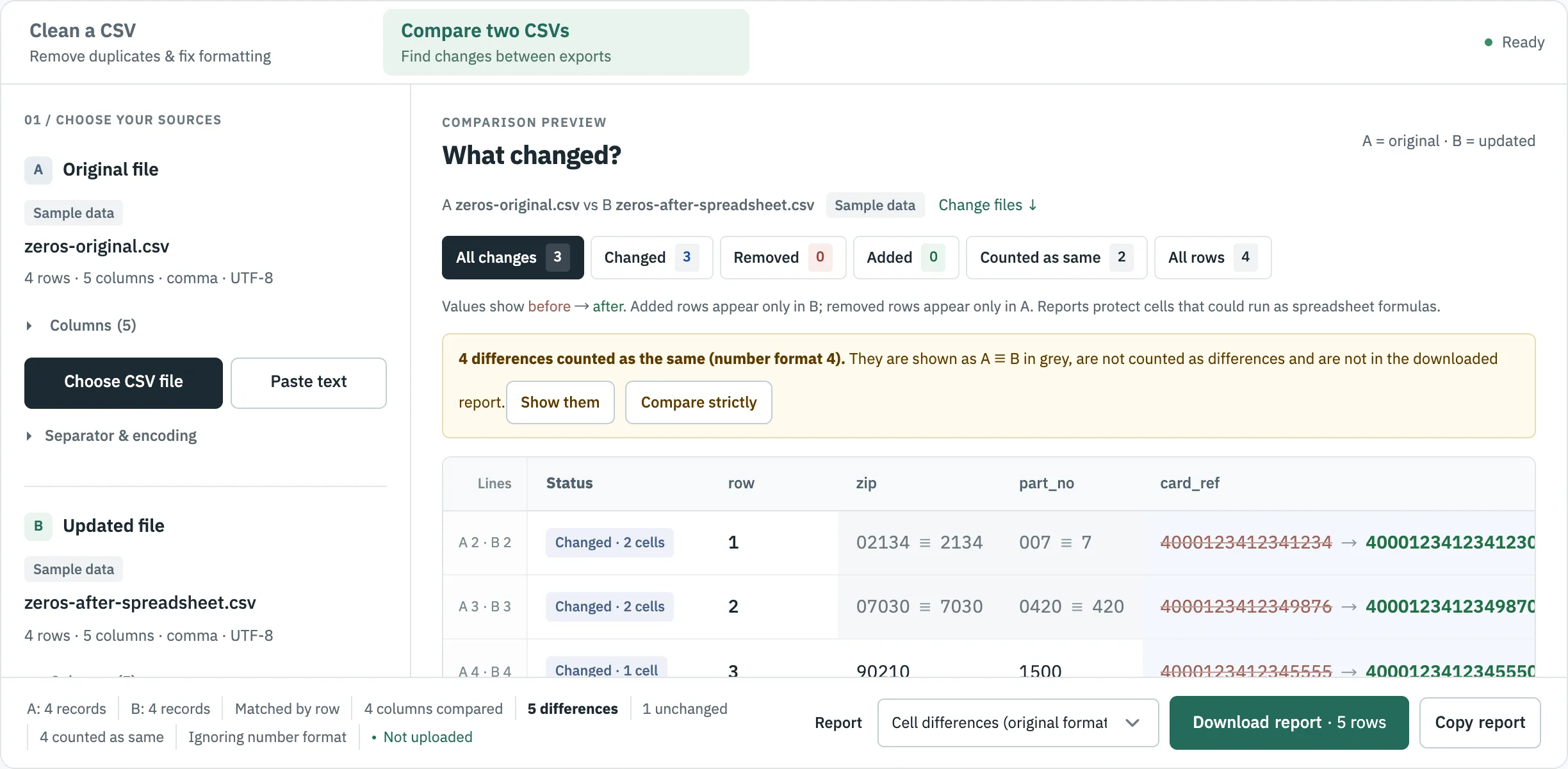
The other 5 stay because the long references are different numbers, and 2-Dec is not a number at all.
Where to go next
Sources
- Microsoft Support: Keeping leading zeros and large numbers, read 30 October 2026.
- Microsoft Support: Stop automatically changing numbers to dates, read 30 October 2026.
- Microsoft Support: Import or export text (.txt or .csv) files, read 30 October 2026.
- FCC: Opening a CSV File in Excel, read 30 October 2026.